Creates the match and sends the name and password to the opposing coach. Steps 1–7.
Joins with the name and password from the home coach. Steps 1–2, then 6–7.
-
Both teams
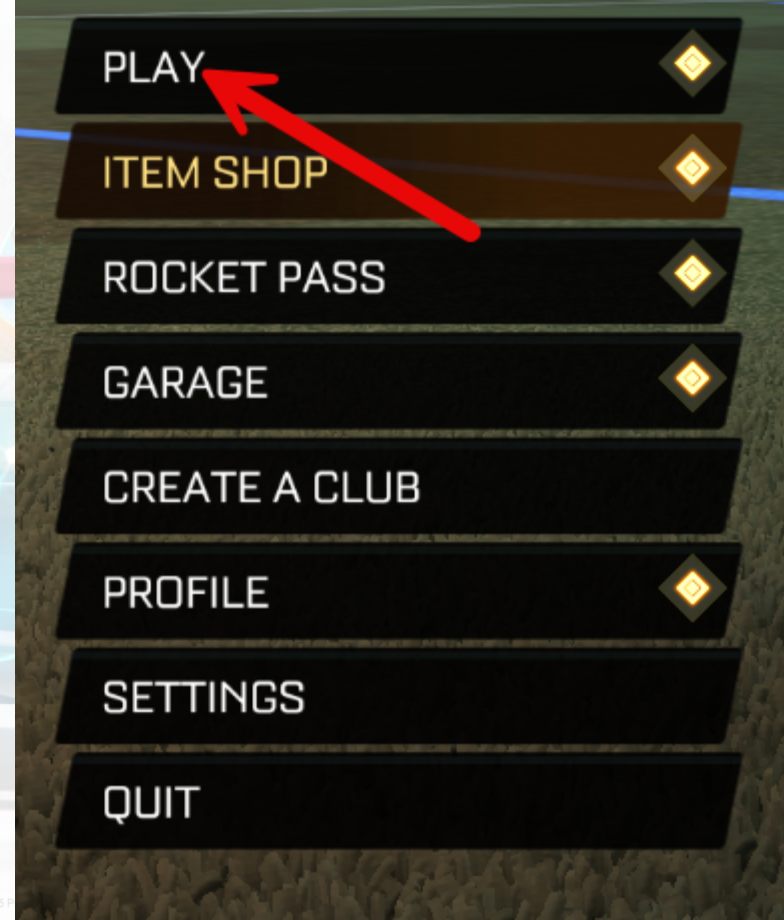
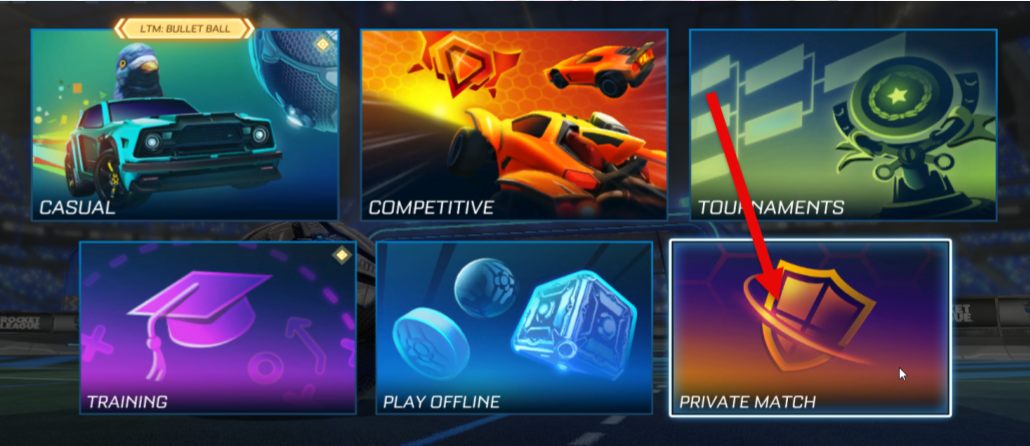
Open Private Match
From the main screen, select Play, then Private Match.
-
Both teams
Create or Join
Home Choose Create Private Match. You can do this on your own account or have a student on your team set it up.
Away Choose Join Private Match and enter the name and password the home coach sent you, then skip to step 6.
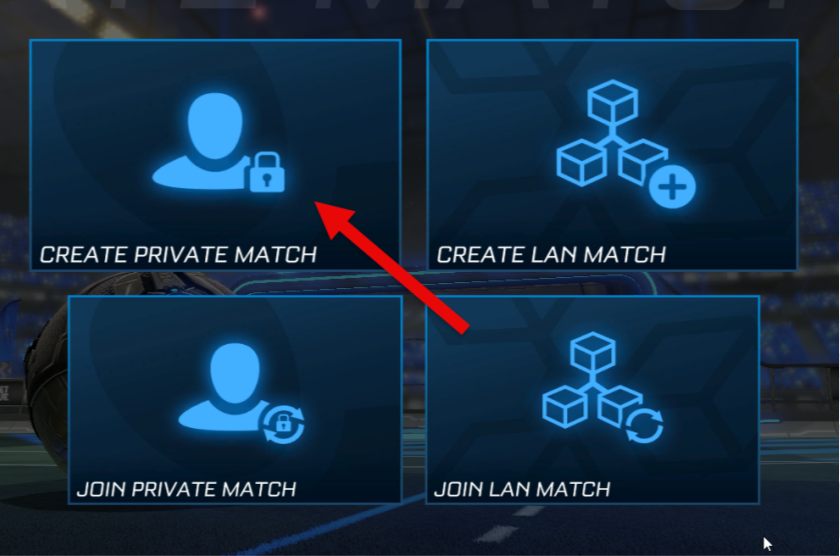
Home team: Create Private Match 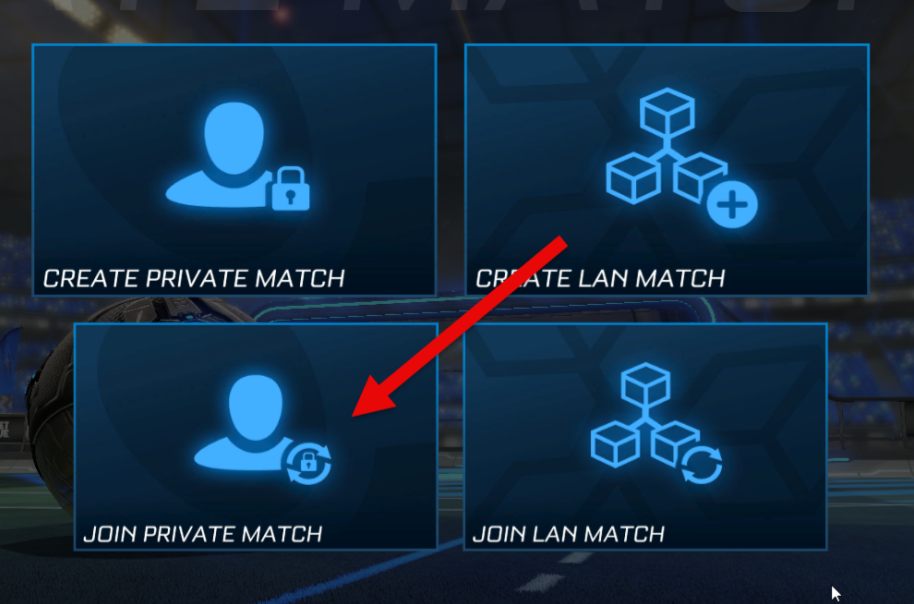
Away team: Join Private Match -
Home team
Use the League Settings
Set the match up exactly like this. Then open Team Settings, type in both schools' names and, if you like, pick colors.
Private match settings for league matches Game Mode Soccar Arena DFH Stadium Team Size 3v3 Bot Difficulty No Bots Region Recommended Joinable By Name/Password Match Admin Disabled 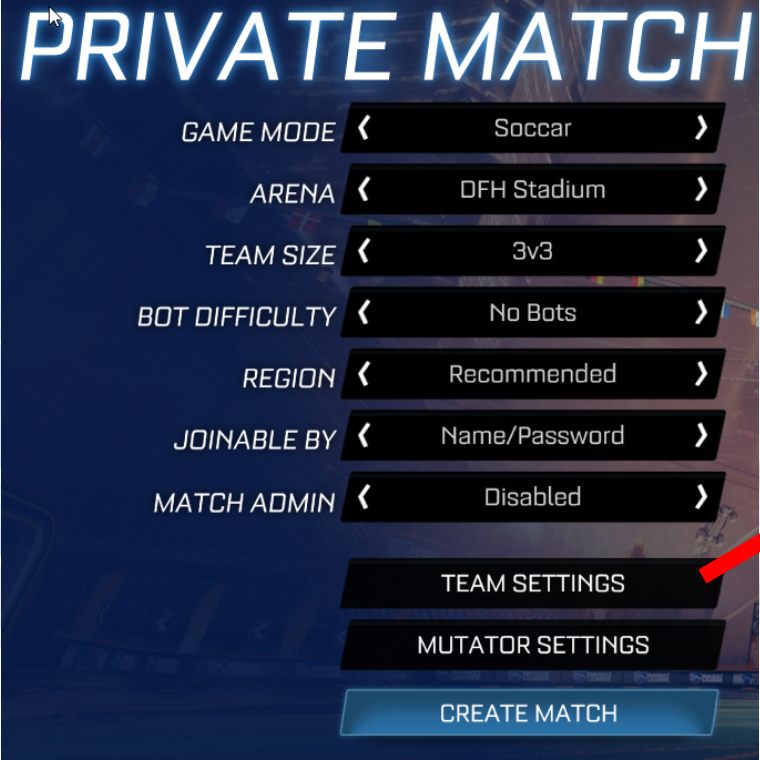
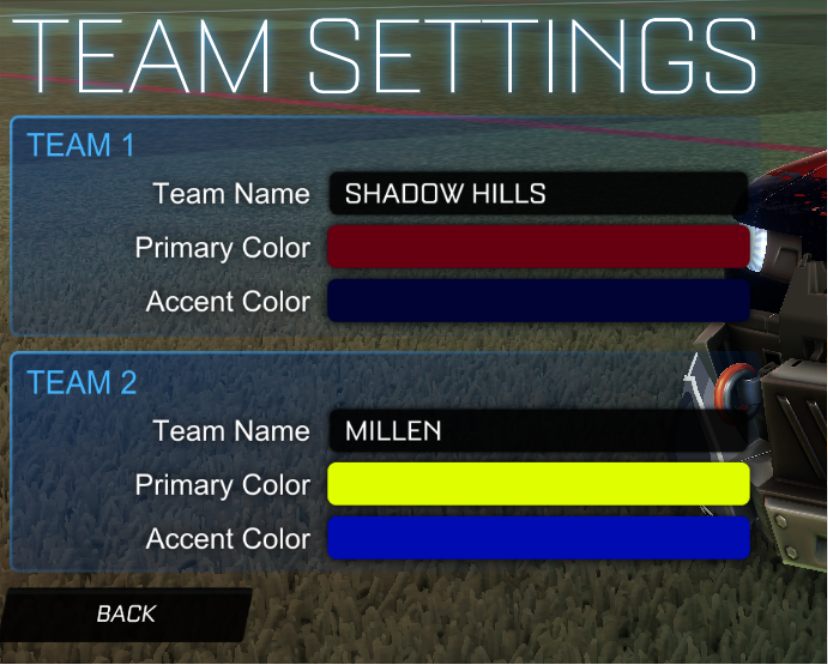
Team Settings: school names in, colors optional -
Home team
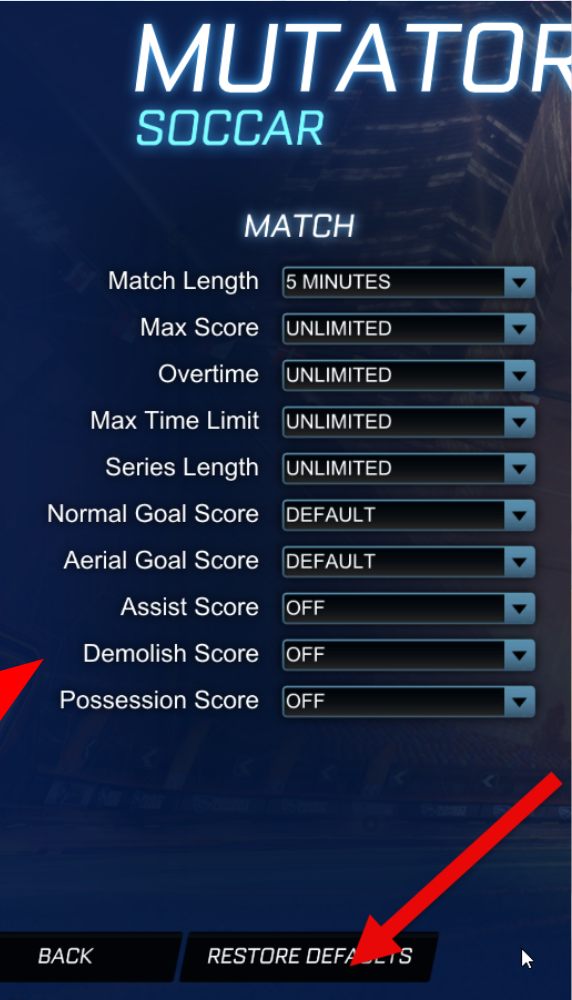
Reset the Mutators
Open Mutator Settings and press Restore Defaults, so nothing left over from a previous game carries into the match.
-
Home team
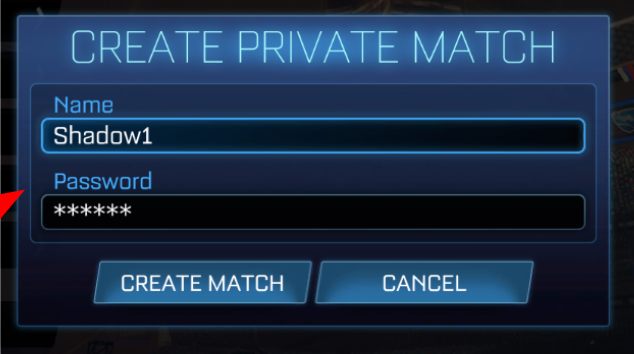
Create the Match & Share It
Click Create Match and choose a fairly easy name and password. Give them to everyone on your team, then send them to the opposing coach on Google Chat.
Need to find the other coach? Use the PSD eSports Coaches contact list (opens in a new tab).
-
Both teams
Wait for All 6 Players
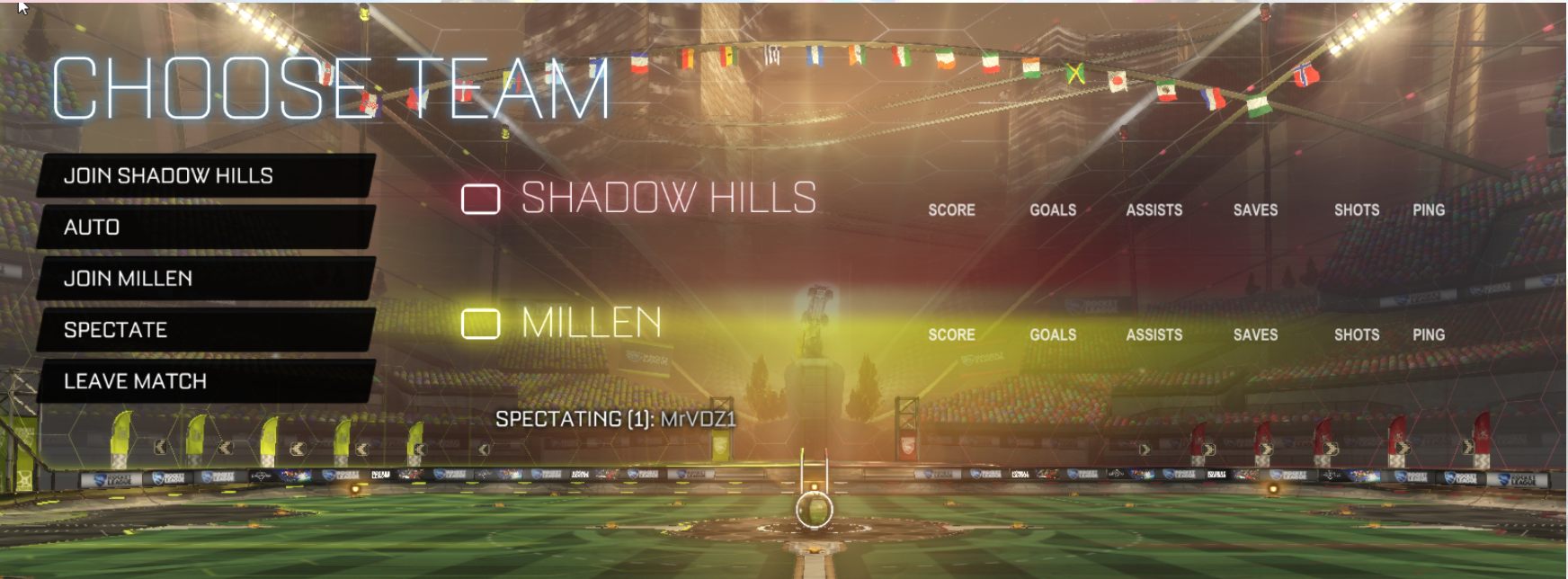
On the Choose Team screen, don't join a team until all 6 players are in the match. If anyone joins a team early, the game starts before everyone is in.
Once all six are in, everyone joins their own school's team and the match begins.
-
Both teams
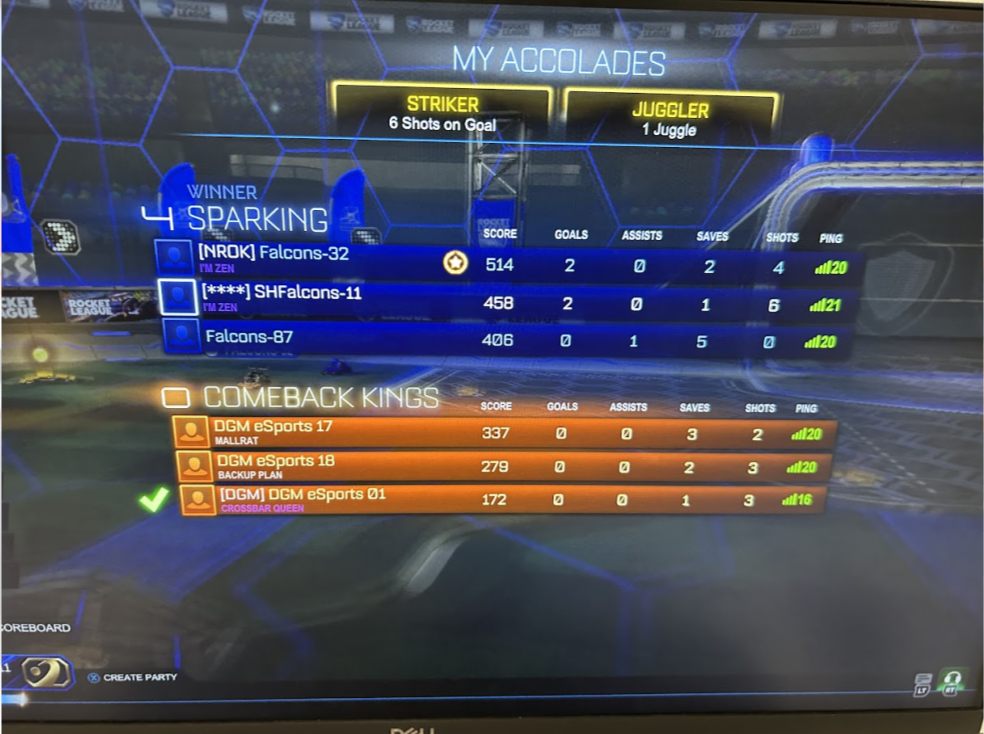
Photograph the Results
When the match ends, keep every student in the game until you've taken a picture of the results screen.
Both coaches then report each game's final stats to the League Administrators on Google Classroom (rule 4.4).
Keep a Copy by the Computer
Prints as black on white with the screenshots. Choose Save as PDF in the print dialog to keep a digital copy.